Configure it
Once backscatter is running, here's how to make it yours: set your location, add more places, and decide how much history to keep. No technical knowledge needed.
There are two ways to configure things, and you can mix them:
- In the app — point and click, right in your browser. Easiest for locations.
- In the
.envfile — the text file you edited during setup. Best for the "keep how long" setting.
Your location
A location is just a place you want radar for — your town, say. backscatter takes the latitude and longitude you give it and automatically picks the nearest weather-radar station (there are 150-plus across the U.S.). You never have to know which station; it just works.
You already set one location during setup. To change it, edit the BACKSCATTER_LOCATIONS
line in your .env file (see your platform's
Get started guide), or add/edit locations right in the app —
which is usually easier:
Adding and managing locations (in the app)
Click the ⚙ button at the top of the page. A panel slides open — this is your settings panel. The top is Locations (add, edit, rename, delete, and choose your default); scroll down and you'll also find Display settings (map style, colors — see the tour) and Archive retention (below).
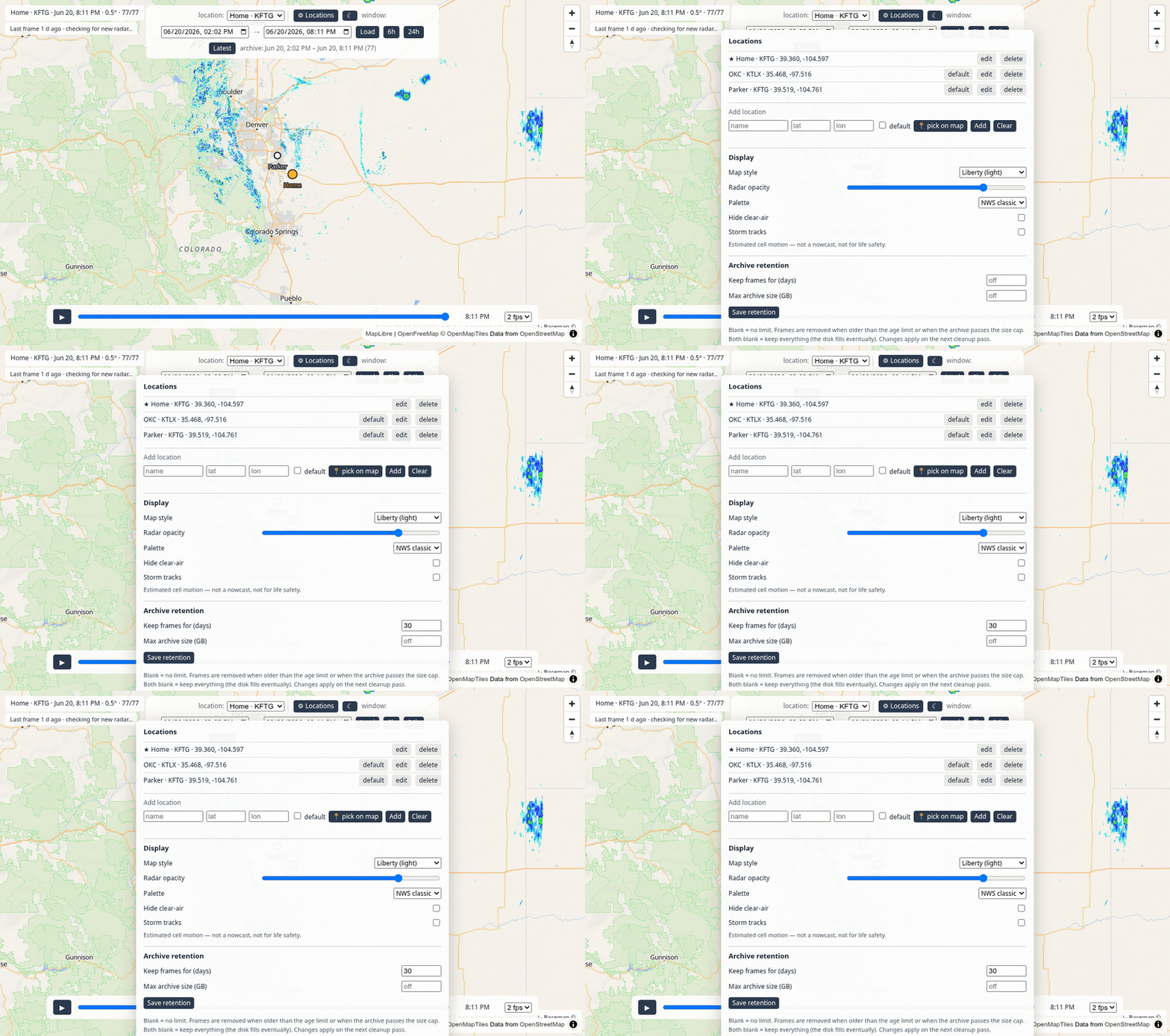
Here's the panel with the list of places and the add form:
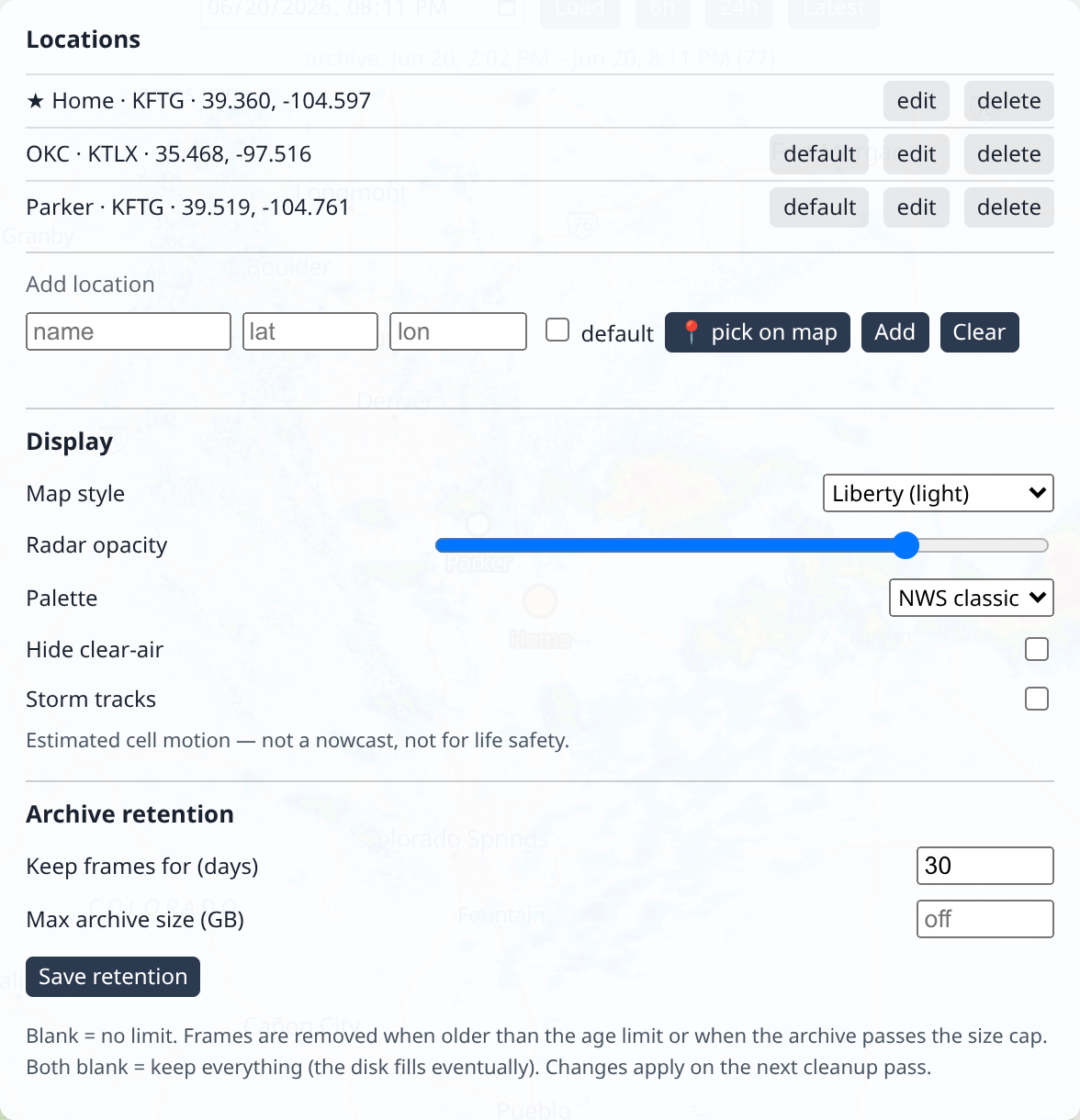
To add a place:
- Click ⚙ Locations.
- Type a name (anything you like — "Home", "Lake house", "Mom's").
- Enter its latitude and longitude — or click 📍 pick on map and then click the spot on the map.
- Click Add. Done — it appears in the list and in the location switcher.
The default location (marked with a ★) is the one shown when you first open the page. Use set default on any location to change it.
Your locations are remembered
Once you've added locations in the app, backscatter saves them. They stick around
when you stop and restart it — you don't have to set them up again. (The
BACKSCATTER_LOCATIONS line in .env is only used the very first time, to give you a
starting point.)
Two towns near the same radar?
That's fine — backscatter is smart about it. If two of your places are covered by the same radar station, it only fetches that radar once and shares it. No wasted effort.
How much history to keep (retention)
backscatter saves every radar picture it collects, forever — unless you tell it not to. That's wonderful for replaying storms, but radar adds up, so backscatter can tidy up after itself automatically. This is called retention.
There are two simple dials. The easiest way to set them is in the app: open the ⚙ panel, scroll to Archive retention — enter a number of days and/or a size in GB (leave a box blank to turn that limit off), then Save retention. Changes apply on the next cleanup pass, no restart needed.
| Dial | What it does | Default |
|---|---|---|
| Keep frames for (days) | Delete radar older than this many days. | 30 days |
| Max archive size (GB) | Also delete the oldest radar once your archive passes this size. | Off (no size limit) |
So out of the box, backscatter keeps the last 30 days and quietly removes anything
older. Set a box to blank (or 0 days) to turn that limit off; leave both blank to
keep everything forever (your disk will fill eventually).
The .env values just seed the first run
BACKSCATTER_RETENTION_DAYS and BACKSCATTER_RETENTION_MAX_GB in .env set the
starting policy on a brand-new archive. After that the app's setting is the source
of truth — edit it under Archive retention, not .env (just like locations). This
is ADR-0013.
Deleting is permanent
When retention removes old radar, it's gone for good (you could always re-download it later with a backfill, but it's not in a recycle bin). The 30-day default is a safe, sensible starting point — raise it whenever you like.
Changing the port
backscatter opens at http://localhost:8085 by default. If 8085 is already used by
something else on your computer — or you just prefer a different number — change one line
in your .env file:
BACKSCATTER_PORT=8085
Set it to, say, 9000, save, and run docker compose up -d in the project folder to
apply it. Then open http://localhost:9000 instead. That single value is used both
inside the app and for the address you open — there's nothing else to change.
What else is in .env?
A few more optional dials, all explained with comments inside the file:
BACKSCATTER_PORT— the web address port (default8085; see above).BACKSCATTER_POLL_INTERVAL— how often it checks for new radar (default 30 seconds; you rarely need to change this).PUID/PGID— Linux file-ownership (see the Linux guide).
Ready to actually use it? Head to the tour.