Set up on Windows
This is the full, click-by-click guide for Windows 10 or 11. Nothing is assumed — follow along top to bottom.
What we're about to do
Install Docker → download backscatter → tell it where you live → start it → open it in your browser. About 15–20 minutes, mostly waiting.
Step 1 — Install Docker Desktop
Docker is a free program that runs backscatter for you. On Windows it's called Docker Desktop.
- Go to the official download page: https://www.docker.com/products/docker-desktop/
- Click Download for Windows.
- When the file finishes downloading (it's called
Docker Desktop Installer.exe), double-click it. - Click OK / Next through the installer, leaving the default options checked. If it asks about "WSL 2", say yes — that's the recommended setting.
- When it's done, click Close and start Docker Desktop from your Start menu.
- The first time it runs it may ask you to accept the terms and might restart your computer — that's normal. You can skip the sign-in/account step; you don't need an account.
You'll know it's ready when the little whale icon appears in your taskbar (bottom- right, near the clock) and stops animating.
Why these steps don't have screenshots
Docker Desktop's installer is made by Docker, and it changes its look from time to time. Rather than show you screenshots that might not match what you see, we link you to Docker's own page, which always has the current pictures. The backscatter steps below do have screenshots, because those are ours and they don't change.
Keep Docker Desktop running
backscatter runs inside Docker, so Docker Desktop needs to be open (the whale in your taskbar) whenever you want to use it. It's fine to have it start automatically with Windows.
Step 2 — Download backscatter
- Open this page: https://github.com/kbennett2000/backscatter
- Click the green
< > Codebutton, then Download ZIP. - Find the downloaded
backscatter-main.zip(usually in your Downloads folder), right-click it, and choose Extract All… → Extract. - You'll now have a folder called
backscatter-main. Move it somewhere easy to find, like your Documents folder.
Prefer the command line? (optional)
If you already use git, you can instead run
git clone https://github.com/kbennett2000/backscatter.git. If that sentence means
nothing to you, ignore it — the ZIP download above is all you need.
Step 3 — Tell it where you live
backscatter needs your location so it can show your nearest radar.
- Open the
backscatter-mainfolder. - Find the file named
.env.example. Make a copy of it in the same folder and rename the copy to exactly.env(just.env, with the dot and nothing after). - Open
.envin Notepad (right-click → Open with → Notepad). -
Find the line that starts with
BACKSCATTER_LOCATIONS=and change the numbers to your own latitude and longitude:BACKSCATTER_LOCATIONS=[{"name":"Home","lat":39.3603,"lon":-104.5969,"default":true}]Replace
39.3603with your latitude and-104.5969with your longitude. Keep the quotes and brackets exactly as they are. 5. Save the file and close Notepad.
How do I find my latitude and longitude?
Open Google Maps, right-click your town, and click the numbers at the top of the little menu that appears — that copies them. The first number is your latitude, the second is your longitude. Or just search the web for "latitude longitude of [your town]".
There's more you can set later (keeping radar longer, adding more towns) on the Configure it page — but the one line above is all you need to start.
Step 4 — Start it
- Open the
backscatter-mainfolder. - Click once in the address bar at the top of the folder window, type
powershell, and press Enter. A blue command window opens, already pointed at the folder. -
Type this and press Enter:
docker compose up -d --build -
The first time, this downloads and builds everything — it can take several minutes and prints a lot of text. That's normal. It's done when you get your prompt back and see lines ending in
Started.
That's the hard part over
From now on, starting backscatter is just docker compose up -d (no --build), and
it's quick.
Step 5 — Open it
Open your web browser and go to:
Want a different port?
8085 is the default. If it's already taken — or you just prefer another number —
change BACKSCATTER_PORT in your .env file, run docker compose up -d again, and
use that number here instead.
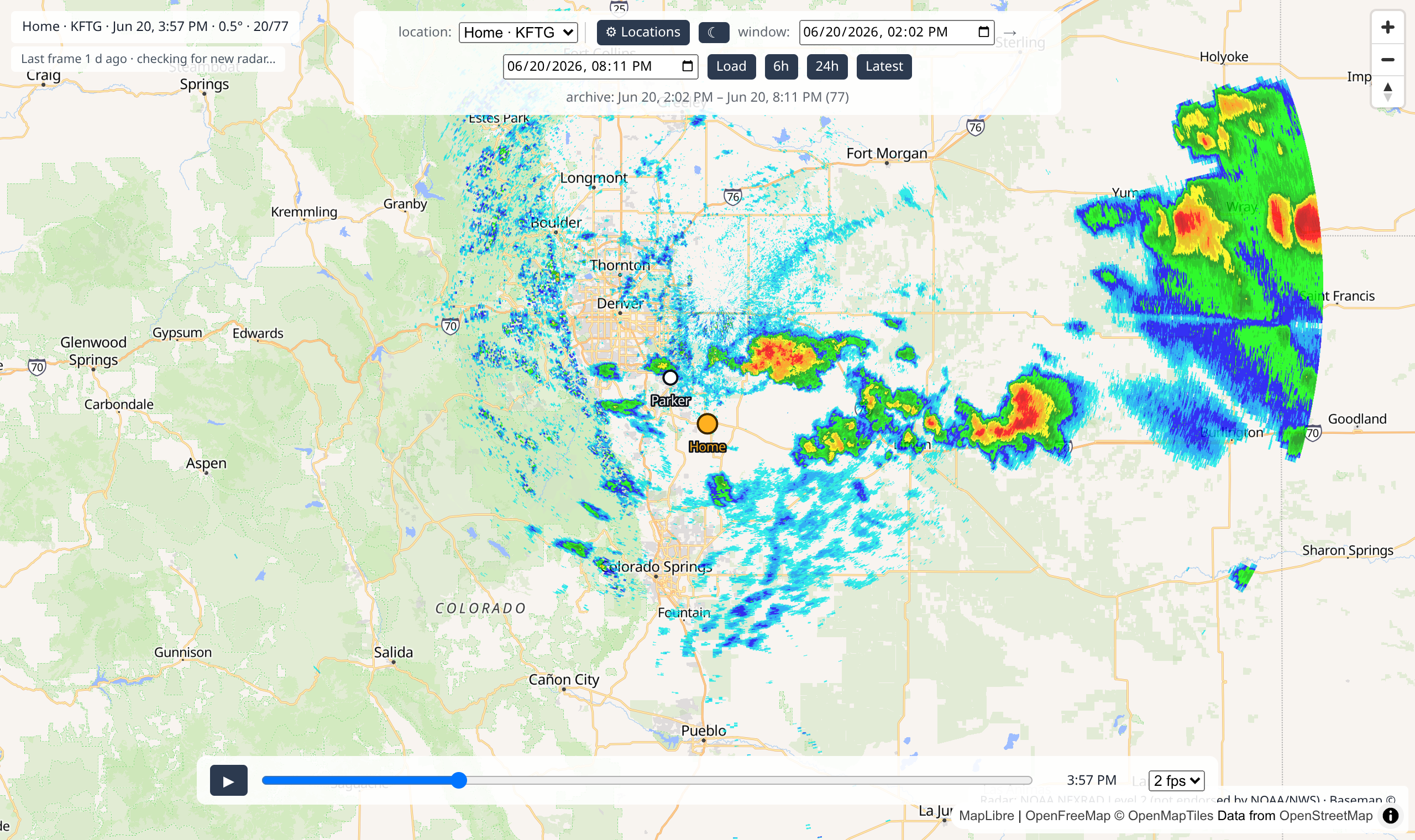
You should see a map centered on your location, like this:
🎉 You did it!
What now?
- It starts empty and fills in over time — backscatter saves a new radar picture every few minutes while it's running. Leave it going and check back.
- Want to see a storm from the past right now? You can backfill older radar — see Help & FAQ.
- Learn the map, timeline, and playback on the Using backscatter tour.
- To stop it: in that same folder, run
docker compose down. Your saved radar stays put.
Hit a snag? The Help & FAQ covers the common ones in plain language.